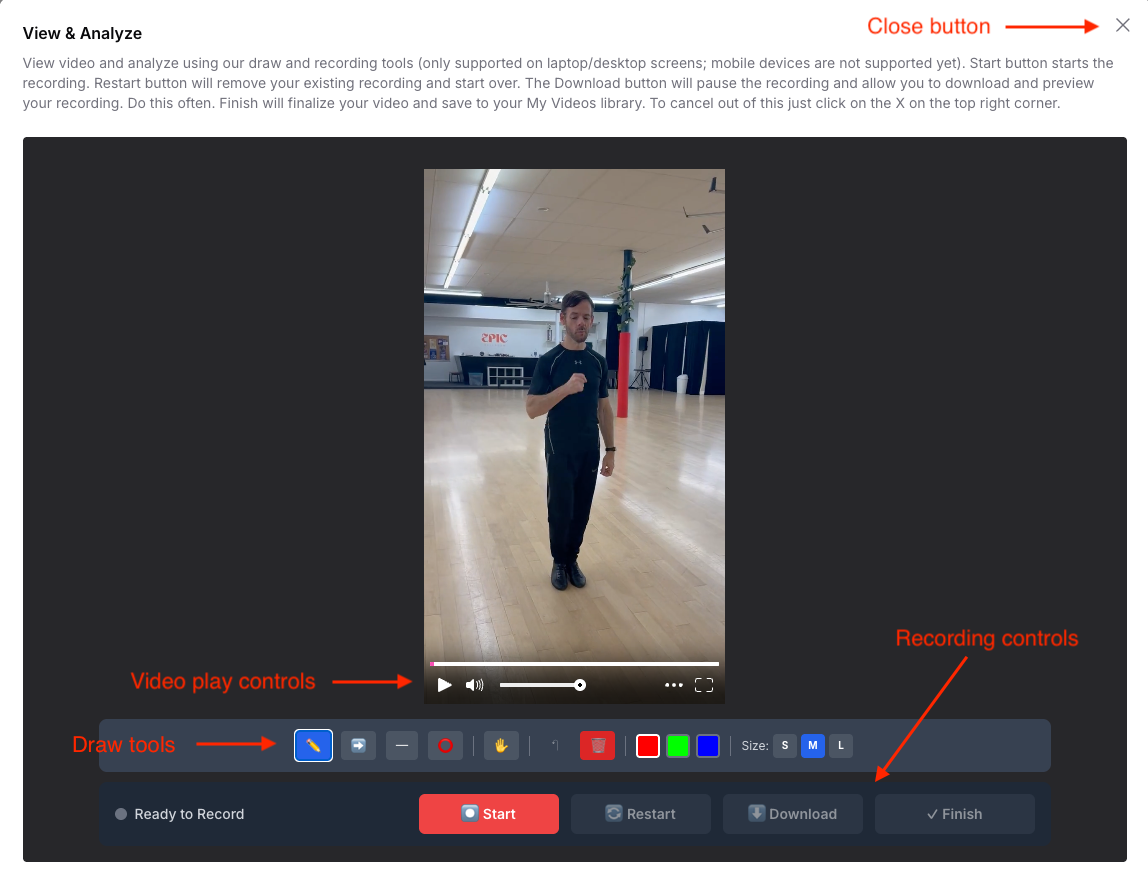
Here is an explanation on the View & Analyze tool for coaches to create voiceover and line annotations on student videos. It's the perfect combination to give feedback to students with voice and visual cues so nothing is lost in translation and the intent is clear.
Video Play Controls
This controls the video player to view the video similar to any video players like youtube or vimeo.
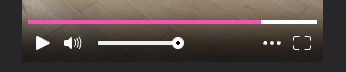
Play/Pause button - Play and pause the video
Mute on/off - Turn on or off the volume
Volume - Set volume to soft to loud
Quality - Choose video quality
Full Screen Mode - Use your full screen to view the video
Draw Tools
Lot's of options of choose to draw your lines and shapes to emphasize you point or highlight something.

Pencil - Free form drawing
Arrow - Straight line arrow to show a specific area
Line - Straight line
Ellipse - Circle to any size ellipse
Grab and Move - Grab a drawn line or ellipse and move it on the video
Undo - Removes the last drawn line or ellipse
Trash - Removes all drawn lines or ellipses
Color Picker - Three colors to choose for lines or ellipses
Line Size Picker - Three line sized to choose for lines or ellipses
Recording Controls
Controls the recording of your voiceover and drawing video. This is completely separate from the video player control. You can record while playing the student video. You can play the video without recording.

Start/Pause/Resume - Starts, pauses, or resumes the recording. The first time you hit Start, the browser will ask you for microphone and recording permissions. Starting the recording first time will automatically play the video and mute the volume so your voice is clear on the recording.
Restart - Restarts the recording from the beginning if you want to start over
Download - Downloads the recording to preview your video. Recommend to do this often to check your recording
Finish - Finalizes the video and uploads it to the platform cloud and saves it to your My Videos library
Close button

The close button at the to right of the screen will close the View & Analyze screen. It will remove any recording done so close the screen with caution.